Documentation / Suppliers
How to add a supplier by link
A supplier in Sync2Sys is a source of products: a price list link (XML, CSV, JSON, Excel, Google Sheets), a file or FTP. After you add it, you load the products with the "Import" button.
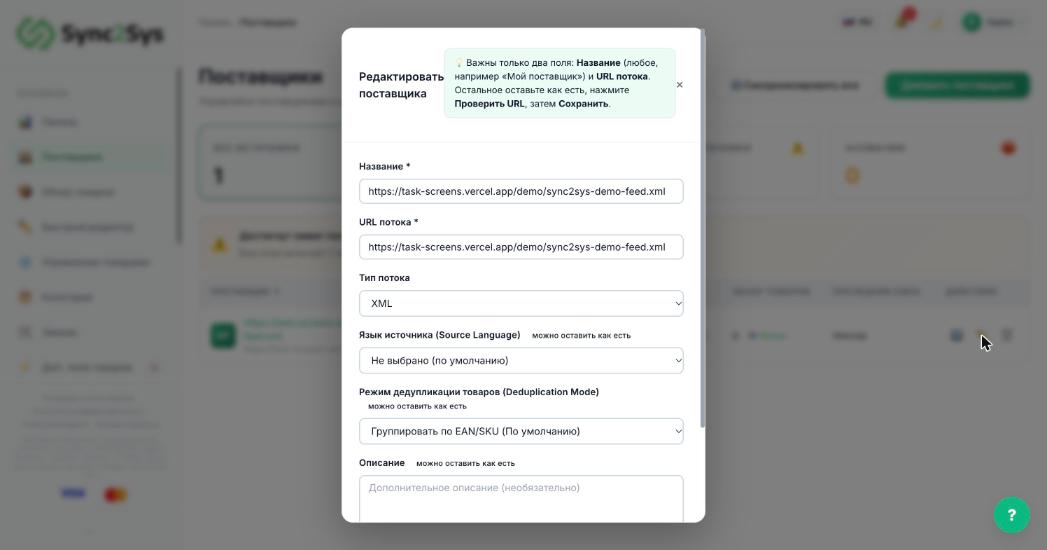
- Open "Suppliers" → "Add supplier".
- "Name": anything that works for you, for example "My supplier". Do not paste the link here.
- "Feed URL": the link to the price list from your supplier. The file must open without a login.
- "Feed type" is detected automatically after the check. You can leave the other fields as they are.
- Press "Check feed URL": you will see the format and the number of products. Then press "Save".
- In the supplier row, press "Import" to load the products.
TipNo link of your own? Use the sample with 46 products, shown on the "Suppliers" page while you have no suppliers.
Tip"Source Language" is only needed for AI translations. Leave "Deduplication Mode" at its default.
If it does not workThe link fails the check: open it in your browser. If it asks for a login, ask your supplier for a direct link or FTP access.
See also
How to load supplier productsWhat to do if the price list cannot be readHow "Import" differs from "Sync all"
Did not find the answer?In the panel press ? at the bottom right and write in the chat. We reply within one business day, and can set things up for you.